JedIN Marketplace Guide: Browsing and Installing Connectors
<video controls width="100%" style={{borderRadius: '8px', marginBottom: '1.5rem'}}> <source src="/blog/videos/jedin-marketplace-browse.mp4" type="video/mp4" /> Your browser does not support the video tag. </video>
Find, Evaluate, and Install Integration Connectors in 8 Steps
Building integrations from scratch wastes engineering time on solved problems. Every HTTP retry handler, every database connection pool, every OAuth2 authentication flow has been implemented thousands of times. A well-curated marketplace eliminates this rework by providing production-ready connectors and templates that teams can install, configure, and deploy in minutes instead of days.
JedIN's Marketplace is the central catalog for all integration connectors and templates. This guide walks you through discovering available packages, evaluating recommendations, searching and filtering the catalog, and installing connectors into your integration projects.
Prerequisites
Before starting, confirm you have:
- A JedIN account with access to the JedIN Integration product
- Developer or Admin role — installing packages requires the Developer role or higher
- At least one integration project or package — you need a target project to install connectors into (you can create one from the Design page if needed)
- A modern browser — Chrome, Edge, or Firefox
Step 1: Navigate to the Marketplace
- Log in to JedIN and ensure you are in the JedIN Integration product (check the product selector in the top-left corner of the header).
- In the left sidebar, locate the Discover menu item under the main navigation.
- Click Discover to open the Marketplace page.
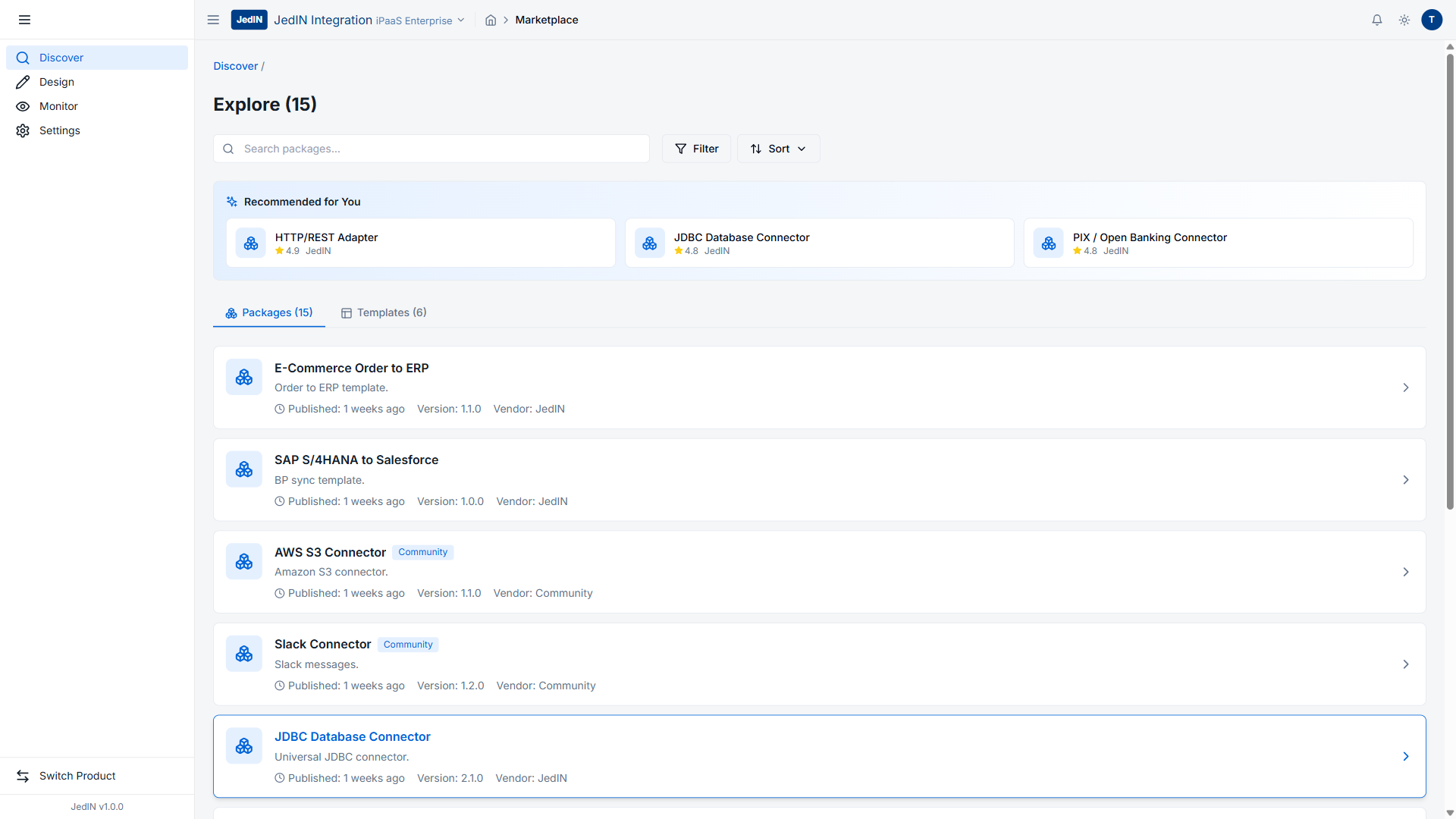
Expected Result: The browser navigates to /marketplace. The page loads with the Marketplace header, a search bar, and the package catalog. You see two tabs at the top: Explore and Templates, with the Explore tab active by default.
Step 2: Understand the Marketplace Layout
The Marketplace page is organized into three main areas:
- Top bar — Contains the search input field, a Filter button, and a Sort button for advanced browsing controls.
- Tabs — Two tabs show the content categories:
- Explore — All available packages (connectors, adapters, and utilities).
- Templates — Pre-built integration patterns that combine multiple connectors into ready-to-deploy solutions.
- Content area — Displays the Recommended section followed by the full package list.
Real Data Example:
| Tab | Count |
|---|---|
| Explore | 15 Packages |
| Templates | 6 Templates |
Expected Result: The Explore tab shows the total package count (15) next to the tab name. The Templates tab shows its count (6). These numbers update as new packages are published.
Step 3: Review Recommended Connectors
At the top of the Explore view, the Recommended for You section highlights the highest-rated connectors based on community ratings and usage patterns.
- Scroll to the Recommended for You section (directly below the tabs).
- Review the three featured connectors:
| Connector | Rating | Vendor |
|---|---|---|
| HTTP/REST Adapter | 4.9 / 5.0 | JedIN |
| JDBC Database Connector | 4.8 / 5.0 | JedIN |
| PIX/Open Banking Connector | 4.8 / 5.0 | JedIN |
- Each recommendation card displays the connector name, star rating, and vendor name.
Expected Result: Three connector cards appear in a horizontal row. All three are official JedIN connectors with ratings above 4.5 stars.
What the ratings mean:
- HTTP/REST Adapter (4.9) — The foundational connector for any REST API integration. Handles authentication (OAuth2, API keys, certificates), retry logic, rate limiting, and payload transformation. Nearly every integration project needs this.
- JDBC Database Connector (4.8) — Connects to PostgreSQL, MySQL, SQL Server, Oracle, and other JDBC-compatible databases. Supports queries, stored procedures, batch inserts, and connection pooling.
- PIX/Open Banking Connector (4.8) — A Brazil-specific connector for PIX instant payments and Open Banking APIs. Handles BACEN certification, DICT lookups, and payment initiation flows — essential for financial integrations in the Brazilian market.
Step 4: Browse the Full Package List
Below the recommendations, the complete catalog lists all available packages.
- Scroll down past the Recommended section to view the full package list.
- Each package card shows: package name, version number, vendor, and a brief description.
- Review the available packages:
| Package | Version | Vendor |
|---|---|---|
| E-Commerce Order to ERP | v1.1.0 | JedIN |
| SAP S/4HANA to Salesforce | v1.0.0 | JedIN |
| AWS S3 Connector | v1.1.0 | Community |
| Slack Connector | v1.2.0 | Community |
| JDBC Database Connector | v2.1.0 | JedIN |
Expected Result: You see a scrollable list of all 15 packages with their version numbers and vendor labels. The list includes a mix of JedIN official packages and Community contributions.
Step 5: Understand Vendor Types
The Marketplace distinguishes between two vendor categories. Knowing the difference helps you evaluate reliability and support expectations.
- Look at the Vendor label on each package card.
- Identify the two vendor types:
| Vendor Type | Meaning | Support Level |
|---|---|---|
| JedIN | Official connectors built and maintained by the JedIN team | Full support, regular updates, SLA-backed for Enterprise tier |
| Community | Connectors contributed by the JedIN community and partners | Community support, best-effort updates, peer-reviewed |
- Use this information when selecting packages for production workloads.
Expected Result: You can distinguish between official and community packages at a glance. For business-critical integrations, prefer JedIN-vendor packages. For internal tools and non-critical flows, Community packages provide excellent value.
When to choose Community packages: Community connectors like the AWS S3 Connector and Slack Connector are widely used and well-maintained. They are ideal for standard use cases. Evaluate their version history and rating before using them in production.
Step 6: Search for Specific Connectors
- Click the Search bar at the top of the Marketplace page.
- Type a keyword related to the connector you need (e.g., "SAP", "database", "S3", "Slack").
- Press Enter or wait for the auto-complete results to appear.
- The package list filters in real-time to show only matching results.
Expected Result: Typing "SAP" filters the list to show the "SAP S/4HANA to Salesforce" package and any other SAP-related connectors. Typing "database" shows the "JDBC Database Connector". The search matches against package names and descriptions.
Tip: Use specific terms for precise results. Searching "JDBC" is more targeted than searching "database". Searching "PIX" immediately finds the PIX/Open Banking Connector.
Step 7: Use Filter and Sort Controls
For advanced browsing, the Marketplace provides filtering and sorting capabilities.
- Click the Filter button next to the search bar.
- Available filter options include:
- Vendor — Filter by JedIN official or Community packages.
- Category — Filter by connector type (adapter, template, utility).
- Rating — Filter by minimum star rating.
- Click the Sort button to change the display order.
- Available sort options include:
- Relevance — Default sorting based on popularity and rating.
- Rating (High to Low) — Highest-rated packages first.
- Newest — Most recently published or updated packages first.
- Name (A-Z) — Alphabetical order.
Expected Result: Applying filters reduces the visible package count. Sorting reorders the list without changing which packages are visible. Filters and sort can be combined — for example, filter by "JedIN" vendor and sort by "Rating" to see the best official connectors first.
Step 8: Install a Package
Once you have found the connector you need, install it into your integration project.
- Click on the package card to open the package details page.
- Review the package information:
- Full description and use cases
- Version history and changelog
- Dependencies (other packages required)
- Configuration parameters
- Click the Install button.
- Select the target integration project or package where the connector should be installed.
- Confirm the installation.
Expected Result: The connector is added to your integration project and becomes available in the Flow Designer's node palette. You can now drag the connector onto your flow canvas and configure its properties (endpoints, credentials, mappings).
After installation: Navigate to the Design page, open your integration package, and create or edit a flow. The newly installed connector appears in the component palette on the left side of the Flow Designer. Drag it onto the canvas to start using it.
Troubleshooting
The Marketplace shows 0 packages
- Cause: The package catalog may not have loaded due to a network issue or API timeout.
- Solution: Refresh the browser page. If the issue persists, check your network connection and verify that the JedIN API is accessible. Contact your administrator if the problem continues.
Search returns no results
- Cause: The search term does not match any package name or description.
- Solution: Try broader search terms. Use single keywords instead of phrases. For example, search "S3" instead of "AWS S3 file storage connector". Check the full package list manually to verify the connector exists.
Install button is disabled or missing
- Cause: Your account role does not have permission to install packages, or the package is already installed in the selected project.
- Solution: Verify you have the Developer or Admin role. If the package is already installed, it will show an "Installed" badge instead of an Install button. Check your target project to confirm.
A Community package has a low rating
- Cause: Community packages are contributed by external developers and may vary in quality.
- Solution: Read the package description and version history carefully. Check if the package has been updated recently. For production use, consider reaching out to the community contributor or choosing an alternative with a higher rating. You can also fork Community packages and maintain your own version.
The installed connector does not appear in the Flow Designer
- Cause: The connector may require additional configuration before it becomes available, or the Flow Designer cache needs to refresh.
- Solution: Close and reopen the Flow Designer. If the connector still does not appear, verify the installation completed successfully by returning to the Marketplace and checking the package status. Some connectors require a connection to be configured in Settings before they appear in the palette.
Summary
The JedIN Marketplace provides a curated catalog of 15 packages and 6 templates, combining official JedIN connectors with community contributions. By following these 8 steps, you can discover recommended connectors, browse the full catalog, search and filter for specific packages, evaluate vendor reliability, and install connectors into your integration projects. The top-rated connectors — HTTP/REST Adapter (4.9), JDBC Database Connector (4.8), and PIX/Open Banking Connector (4.8) — cover the most common integration patterns and are a solid starting point for any project.
Related Articles
JedIN Marketplace — 15 Packages, 6 Templates, Enterprise Connectors
Exploring JedIN's integration marketplace with 15 curated packages, 6 ready-to-use templates, and highly-rated connectors for REST, JDBC, and PIX/Open Banking.
JedIN Monitoring Guide: Reading the Real-Time Dashboard
A step-by-step guide to navigating JedIN's monitoring dashboard — real-time executions, message processing metrics, artifact management, and security material overview.
JedIN Flow Designer Quick Start: Opening and Navigating Your First Flow
A step-by-step guide to opening your first integration flow in the JedIN Flow Designer — from login to exploring the canvas, node palette, properties panel, and toolbar controls.